
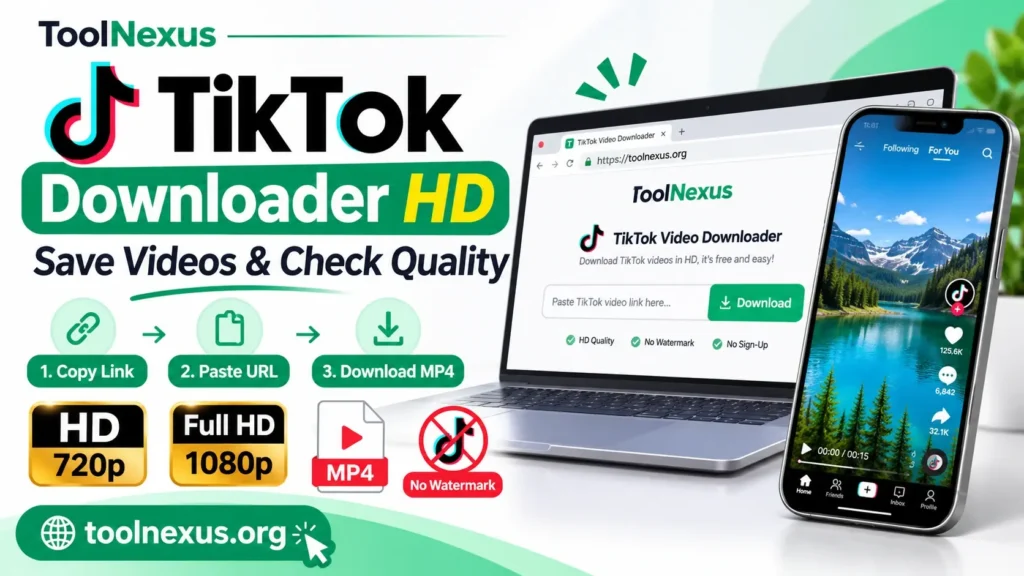
To use a TikTok downloader HD tool, copy the share link of a public TikTok video, paste it into a browser-based downloader such as the ToolNexus TikTok Video Downloader, and save the MP4 it returns. It takes three steps, needs no app and no login, and costs nothing. You get an HD file without the TikTok logo, with the original audio inside.
The trouble is that most pages promising this are packed with ads, push you to install an app, or return a soft, blurry file. TikTok’s own Save button adds a moving watermark, and it disappears entirely when the creator has turned downloads off. You can lose twenty minutes testing sites before one works, and you still do not know whether the file is really HD.
This guide covers the whole process in order. You will learn what HD means for a TikTok clip, how to copy the right link on a phone or a computer, how to download the file, and how to find it and check its quality. It also shows how to fix a download that fails, and how to get a version with the watermark if you want one.
What HD means before you download
HD on TikTok means the highest-quality version the creator uploaded, usually 720p or 1080p in vertical format. A downloader can only pass that file along. It cannot add detail that was never there, so the quality you get is set before you ever paste a link.
What an HD TikTok video looks like
TikTok videos are vertical, so the frame sizes are the reverse of what you see on YouTube. Here is how the common labels map to real dimensions.

| Label | Frame size (width x height) | How it looks |
|---|---|---|
| Standard definition | Below 720 x 1280 | Fine on a phone, soft on a monitor |
| HD (720p) | 720 x 1280 | Sharp on phones, acceptable on a laptop |
| Full HD (1080p) | 1080 x 1920 | Best common quality, good for editing |
If you search for a way to download a TikTok video in no watermark 1080p, the honest answer is that you get 1080p only when the creator uploaded 1080p. A clip posted at 720p stays at 720p, whatever the tool’s label says. Source quality sets the ceiling, and a good downloader gives you the best version that exists.
An HD downloader can only deliver the quality the creator uploaded, so check the file, not the label.
What you need before you start
The requirements are short, and none of them involve an account.
- A public TikTok video. Private videos and deleted posts cannot be saved by any online tool.
- The link to that one video, not a profile or a search page.
- A current browser: Chrome, Safari, Edge or Firefox all work with the ToolNexus tool.
- A little free storage. A short clip is usually a few megabytes, and a long one can be much larger.
You do not need a TikTok account to use the downloader, and you never type your TikTok password into it. Save your own videos or clips you have permission to use. Having a file on your device does not transfer the creator’s rights to you.
Step 1. Copy the link of the TikTok video
Open the video you want, tap Share, and choose Copy link. On a computer, copy the address of the video’s own page. Either way, the goal is a link that points to exactly one video, because that link is the only thing the downloader needs.
Copy the link in the TikTok app
Use these steps on iPhone or Android:
- Open the TikTok app and play the video you want to save.
- Tap the Share arrow on the right side of the screen.
- Tap Copy link in the share menu.
- Leave the app open or switch straight to your browser. The link stays on your clipboard.
Play the video once before you copy, because trending clips often have near-identical copies posted by other accounts. Confirm the creator’s username on screen so you do not save a reupload at lower quality.
Copy the link on a computer
Go to tiktok.com in your browser and open the video itself so it plays on its own page. The address bar should show a link shaped like tiktok.com/@username/video/ followed by a long number. Click the address bar, select the whole link and copy it. You can also use the Share button next to the video and choose Copy link.
A profile address, a hashtag page or the For You feed will not work, because none of them identifies a single video. If you copied a short link and the downloader rejects it, open that short link in your browser first. It redirects to the full address, and you can copy that instead. Also check that no extra text came along with the link. Some share menus copy a caption plus the URL, and the caption has to go.
One clean link to one public video is the only input an online TikTok downloader needs.
Step 2. Paste the link and download in HD
Open the ToolNexus TikTok Video Downloader, paste your link into the input box, and click the download button. You get an HD MP4 without a watermark. There is nothing to install and no sign-up screen between you and the file.
Paste the link and start the download
Go to toolnexus.org, open the Video Tools category and pick the TikTok Video Downloader. Paste the link with a long press on a phone, or Ctrl+V (Cmd+V on a Mac) on a computer. Press the download button and wait for the result to appear. If you paste a second link, wait until the first request has finished so you do not confuse the two results.
Once the result shows, use the download option and let your browser save the file. The downloader accepts public videos only. That also means it cannot see inside private accounts, so the creator’s privacy setting always wins.
What the finished file contains
The details below apply to a clip saved with the ToolNexus tool.
| Detail | What you get |
|---|---|
| Format | MP4 with standard H.264 video, which plays almost everywhere |
| Quality | HD, without the TikTok watermark |
| Audio | The original audio is inside the MP4 |
| Price | Free, with no trial period and no paid plan |
| Download limit | No daily cap |
| Account | No TikTok account and no sign-up |
| Browsers | Chrome, Safari, Edge and Firefox |
| File name | tiktok_video.mp4 |
Because every file arrives under the same name, rename each clip right away if you save more than one. Otherwise your browser adds (1), (2) and so on, and after a batch you cannot tell which video is which. A name like creator_topic_date.mp4 saves a lot of confusion later.
Every file saves as tiktok_video.mp4, so rename it the moment it lands.
Step 3. Save the file and check its quality
Your browser saves the MP4 to its downloads location, and you can open it from the downloads list or the Files app. Then play it and check the frame size, which takes under a minute. That check is what tells you whether you really got HD.
Find the downloaded video on your device
On an iPhone or iPad, use Safari. Tap the downloads icon in the address bar to open the file, or find it in the Files app under Downloads. A file in Downloads does not automatically show up in Photos. If you want it in your camera roll, open the video, tap Share and choose Save Video.
On Android, open your browser’s downloads list or the Files app, where the clip sits in the Downloads folder. Your gallery may take a moment to show it. On Windows and Mac, the file lands in your Downloads folder unless you changed the location in your browser settings. Check the folder first before concluding that the download failed.
Confirm that the clip is really HD
Play the first few seconds and a stretch near the end. Look for sharp text, steady motion and the right audio. Then read the dimensions:
- Windows: right-click the file, choose Properties, open the Details tab and read the frame width and height.
- Mac: select the file, press Cmd+I, and look under More Info for the dimensions.
A reading of 1080 x 1920 means Full HD, and 720 x 1280 means HD. If you see something lower, compare it with the source. The original upload was probably low quality, and a second download will not fix that. If the file will not play, open it in another current player before assuming it is broken.
Check the frame size in your file properties, because that number tells you what you actually saved.
Fix failed downloads and choose your watermark option
Most failed downloads trace back to a wrong link or an unavailable video, and both are quick to fix. If you want the TikTok watermark on your copy, use TikTok’s built-in Save video option instead. Know your rights before you reuse any file.
If the download does not start
Work through the usual causes in this order:
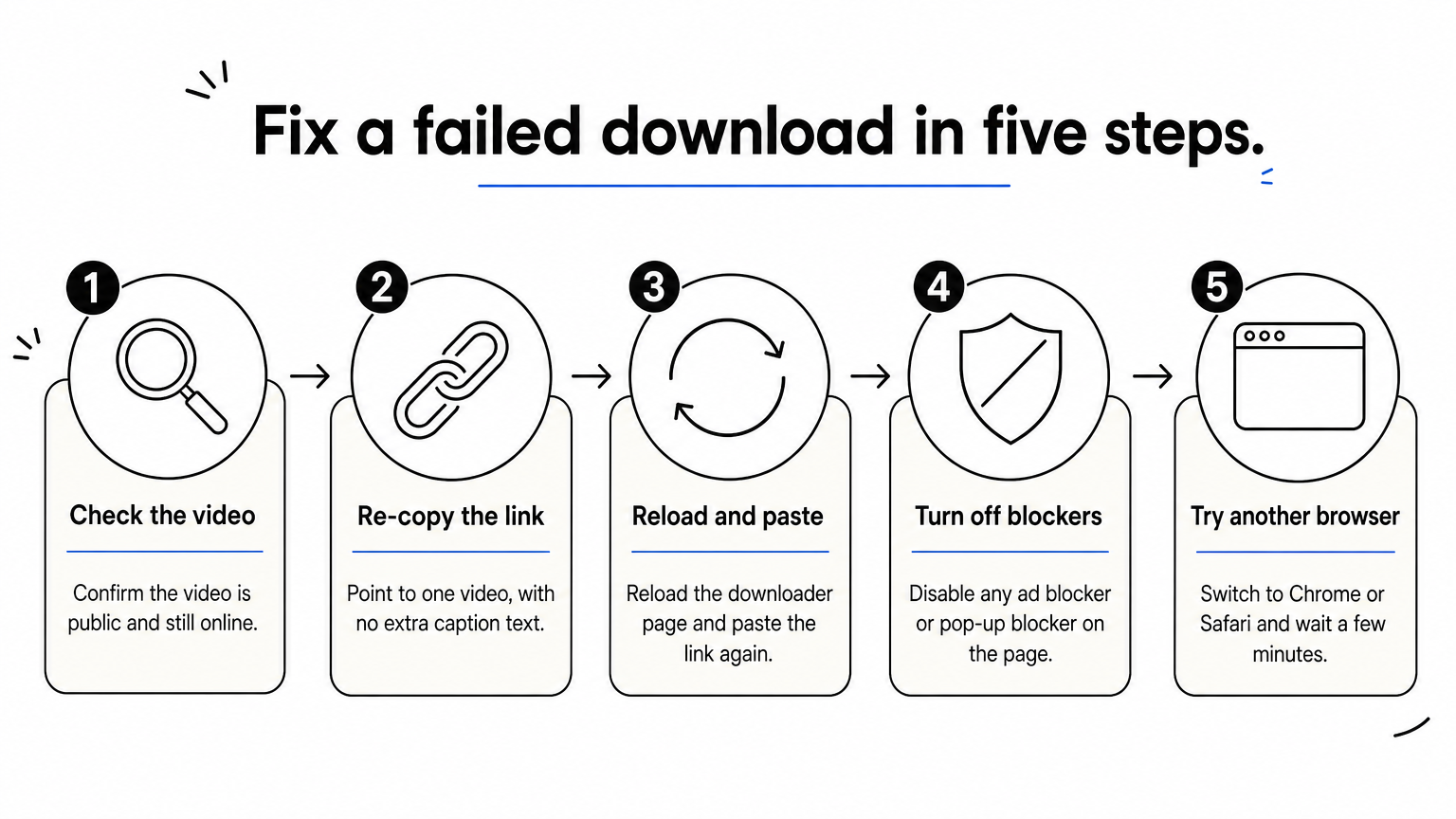
- Confirm the video is public and still online. Open it in TikTok. Private, deleted or age-restricted posts cannot be fetched.
- Re-copy the link. Make sure it points to one video and contains no extra caption text.
- Reload the downloader page and paste the link again. One attempt at a time works better than repeated clicks.
- Turn off any ad blocker or pop-up blocker on the page. Some of them stop the file from saving.
- Try another supported browser, such as Chrome or Safari, and wait a few minutes if the problem looks temporary.
If a valid public video still fails, the tool may be having a short problem. You can report it to support@toolnexus.org. The team replies within 12 to 24 hours.
How to download a TikTok video with the watermark
Sometimes you want the logo and username on the clip, for example to keep credit visible. In the TikTok app, tap Share and then Save video. The file saves to your phone with the TikTok watermark. That option only appears when the creator allows downloads, and creators can switch it off.
| Method | Watermark | App needed | Works when downloads are off |
|---|---|---|---|
| TikTok’s Save video button | Yes | TikTok app | No |
| ToolNexus TikTok Video Downloader | No | Browser only | – |
The watermark is not a quality difference. It is simply a label burned into the frame. Pick the clean version when you plan to edit, and the watermarked one when you want credit visible on the file.
Use saved videos responsibly
A download without a watermark does not make the clip yours. Music, footage and faces can all carry rights, and permission to watch is not permission to republish. Download your own uploads or clips the creator has approved. For anything you post publicly or use in an ad, ask first and credit the creator. ToolNexus leaves responsibility for the files you process with you, so check before you reuse anything.
Saving a clip and having the right to reuse it are two different things, so get permission before you republish.
Save your video in three steps
The whole method fits in a sentence. Copy the link of one public video, paste it into the downloader, then save and check the MP4. HD depends on what the creator uploaded, the watermark is your choice, and you never need an app or an account.
Keep two habits and the process stays painless: confirm that your link points to a single video, and rename every file the moment it downloads. When you are ready to try it, open the free TikTok Video Downloader on ToolNexus and paste your first link.
Comments (0)
0 totalNo comments yet. Be the first to share your thoughts!