
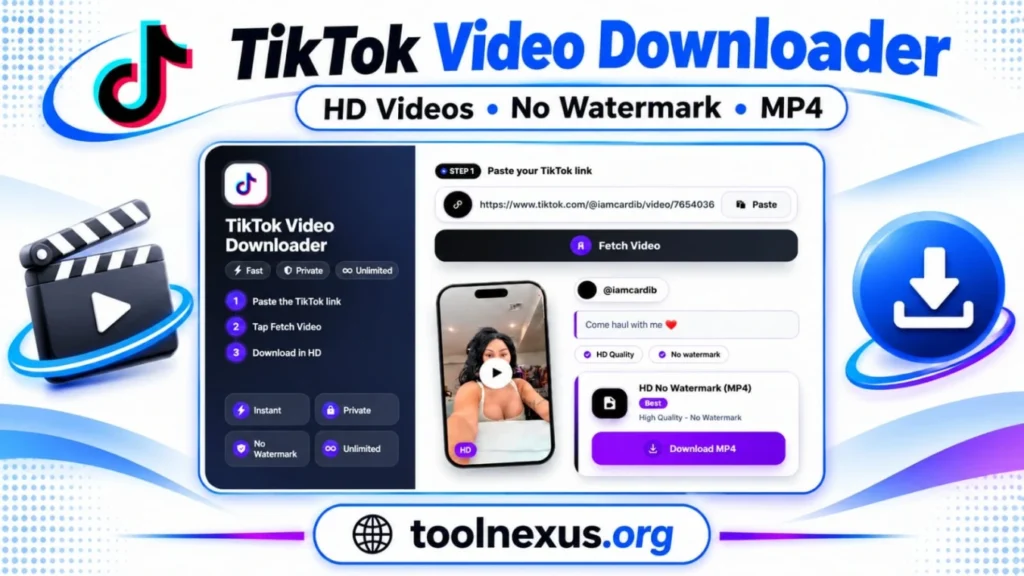
HD No Watermark (MP4) Best
High Quality • No WatermarkTikTok Video Downloader: Save Any Public Video in HD
You find a TikTok worth keeping. You press save, and the file comes with a moving logo across the screen. Or you try a random site, and the video opens as a black screen on your laptop. A good TikTok video downloader fixes both problems.
Our TikTok video downloader takes a link and gives you a clean MP4 file in HD with no watermark. It runs on this page, so the whole job takes less than a minute.
What Is a TikTok Video Downloader?
A TikTok video downloader is a web tool that reads the link of a TikTok post, finds the video file behind it, and lets you save that file on your device. Once it is saved, you can play it with any video app, with or without the TikTok app.
What this tool saves
It turns a TikTok link into an HD MP4 video. That is its one job.
What it does not save
- Photo posts and slideshows
- Live streams
- Sound-only MP3 files
We would rather tell you this now than waste your time.
How to Use the TikTok Video Downloader
Step 1: Copy the video link
In the TikTok app, open the video, tap Share, then tap Copy link. On a computer, copy the address from your browser’s address bar.
Step 2: Paste the link and tap Fetch Video
Tap the Paste button, or paste the link into the box yourself. Then tap Fetch Video. The tool shows the video’s thumbnail, the creator’s username and the caption, so you can check that it is the right video before you save it.
Step 3: Tap Download MP4
A percentage shows while the file saves. When it reaches 100%, the video is on your device.
Key Features of the TikTok Video Downloader
HD quality with no watermark
The main option is labeled HD No Watermark (MP4) and carries a Best badge, so you never have to guess which button to press. The TikTok logo and username are not stamped on the picture, so you can reuse your own clips in an editor without cropping anything out.
Free and fast
Saving a video costs nothing. There is no trial period and no paid plan waiting behind the button. Most links fetch within seconds, and the download then runs as fast as your own connection allows.
Ratings and reviews from real users
Below the tool, you can read what other people say about it and leave a rating of your own.
Why the Downloaded Video Plays on Any Device
Not every MP4 file is the same. Inside the file, the video is packed with a codec. Two common ones are H.264 and HEVC (also called H.265). HEVC makes smaller files, but older Windows PCs, some Chromebooks and some apps cannot play it. You get a black screen or an error message.
Our tool gives you a standard H.264 MP4. Almost every phone, laptop, TV and app understands this format. If you ever receive an HEVC file from another source, a free player such as VLC can usually open it.
Where your video goes after you download it
iPhone and iPad: Safari saves the file in the Downloads folder of the Files app. Open it, tap Share, then tap Save Video to move it into Photos.
Android: Chrome saves it in Downloads. Open your Files app, or look for the Downloads album in your gallery.
Windows and Mac: The file lands in your Downloads folder. Double-click it to play.
Every file is named tiktok_video.mp4. If you save several clips, rename each one right away, or your device may add numbers like (1) and (2) and make them hard to tell apart.
Why a TikTok Link Won’t Download
If a link fails, check these causes first:
- The post is private or deleted. Only videos that anyone can watch can be fetched. Open the link in a private browser window. If TikTok asks you to log in or shows an error, the tool cannot fetch it either.
- The creator turned off downloads. TikTok lets creators switch off downloads for their videos, and the Save button is often missing inside the app too. If the video is not yours, ask the creator before you reuse it.
- The video is restricted. Some posts are limited by age or country. TikTok sets these limits, so the tool cannot get around them. Ask the person who posted it to send you the file directly.
- The link is not a video link. Links to profiles, sounds and hashtags do not point to one video. Open the video itself, tap Share, and copy its link again.
- The download stops halfway. Free some space on your device, keep the tab open until it finishes, then try again on a steadier connection.
- Your browser blocks the save. Some browsers ask permission before they save a file. Allow it, or try Chrome or Safari.
Is It Safe and Legal to Use?
Staying safe
Avoid downloader apps and APK files from unknown websites, because they can carry malware. A tool that runs in your browser needs no install. If a site opens pop-ups or asks you to allow notifications, close it.
Using videos fairly
Every video belongs to its creator. Saving your own posts is fine. For someone else’s video, ask permission, give credit, and keep it for personal use. Re-posting another person’s video as your own can break copyright law and TikTok’s rules. You can read TikTok’s own words in its Terms of Service and Intellectual Property Policy. This is general information, not legal advice.
If you are the creator
You decide whether other people can save your videos. In the TikTok app, open Settings and privacy, tap Privacy, then tap Downloads, and switch Video downloads on or off. Menu names can change when the app updates. Turning it off removes the Save button for others, but it does not delete copies that were saved earlier.
Purpose Behind Creating This Tool
TikTok is, above all, an entertainment platform. Most people open it to laugh, and sooner or later they find a video so funny that they want their relatives and friends to see it too. But a video saved from the app carries the TikTok logo and username, and sending it that way shows exactly where it came from. This tool gives them a plain, clean video file to share in a family group or a chat with friends, with no logo on the picture. That everyday need is the main reason we built it.
We also made it simple: paste, fetch, save. It helps creators who want a backup of their own posts, social media managers who have a client’s permission, and teachers or students who keep short lessons to watch when the signal is weak.
Related Tools
Facebook Video Downloader: Save videos, Reels and Stories from Facebook with the same paste-and-download steps.
Free Online Photo Editor: Crop, resize and edit pictures in your browser, handy for making a cover image before you share your clip.
Free QR Code Generator: Turn any link into a QR code, useful when you want many people to open your page or profile quickly.
Frequently Asked Questions
Do I need an account to use it?
No. You need no TikTok account and no sign-up here, only the link. Never type your TikTok password into any downloader site.
Can I paste a short link from the app?
Links from the Share menu usually work, as long as they come from tiktok.com. If a short link fails, open it in a browser and copy the full address from the address bar.
Is there a limit on how many videos I can download?
No daily cap. Paste the next link after each download finishes.
Does it work on tablets, Mac and Chromebook?
Yes. Any modern browser works, including Chrome, Safari, Edge and Firefox. On an iPad, use Safari.
Can I edit the file in CapCut or another editor?
It should open in popular editors, including CapCut, because it is a standard H.264 MP4. Keep in mind that the video can never be sharper than the version the creator uploaded.
Does the download include sound?
Yes, the original audio is inside the MP4. The caption you see in the preview is only there to help you check the video. It is not saved in the file. If you hear nothing, check that your phone is not on silent and that the media volume is turned up.
Frequently Asked Questions
User Reviews & Ratings
Write a Review
Thank You for Your Review!
You have already submitted a review for this tool. We appreciate your feedback!