
Use JSON Validator and Formatter – Validate, Beautify and Minify JSON Online
Valid JSON
No errors found. Your JSON is valid.
JSON Validator and Formatter: Validate, Beautify and Minify JSON Online
A single missing comma can break an API call, crash a config file, or leave you scanning hundreds of lines by eye. A JSON validator and formatter finds the exact problem and turns messy text into something you can read in seconds.
This guide explains how to use the tool, what each feature does, which errors show up most often, and how to avoid them.
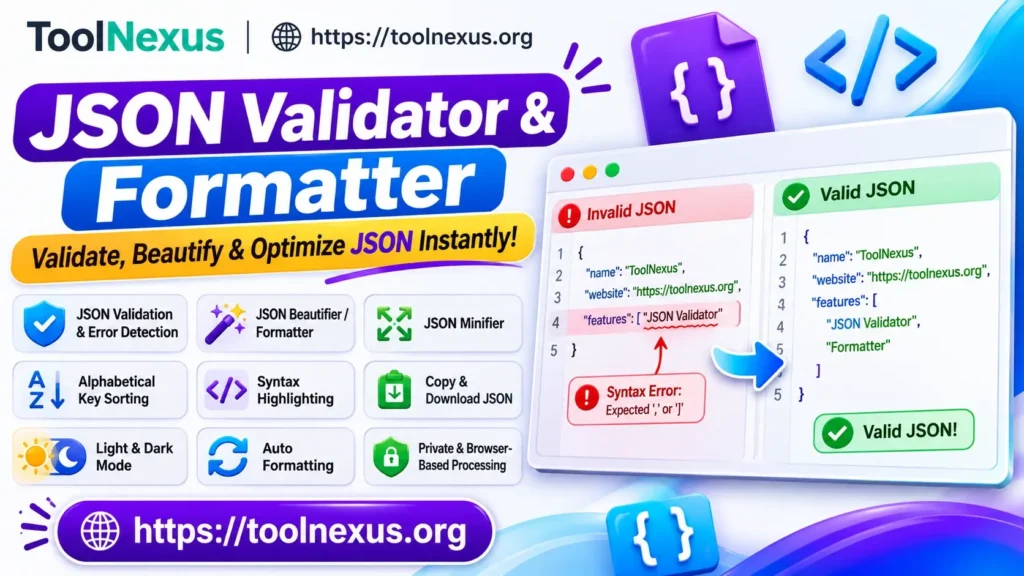
How to Use the JSON Validator and Formatter
You can go from raw text to clean output in four steps.
Step 1: Paste Your JSON
Paste your data into the input box, or use the paste button. The tool checks it as soon as it arrives.
Step 2: Read the Validation Result
A green status means your JSON is valid. If something is wrong, the status panel shows “Invalid JSON” with the parse error and, when your browser reports a position, the line number. The formatted output stays blank until the error is fixed.
Step 3: Format, Sort, or Minify
Valid JSON appears in the output panel with syntax highlighting and two-space indentation. Two optional checkboxes let you sort keys alphabetically or compact the output. The Minify button does the same in one click.
Step 4: Copy or Download
Copy the result to your clipboard, or download it as a formatted.json file.
Key Features of the JSON Validator and Formatter
- Real-time syntax validation: The tool re-checks your JSON each time the input changes.
- Error line reporting: It points to the line where parsing failed.
- JSON beautifier: It pretty prints with consistent indentation, so nested objects and arrays are easy to follow.
- JSON minifier: It strips all whitespace for compact payloads.
- Sort keys: It orders object keys alphabetically at every nesting level, which helps when comparing two files.
- Type detection: It tells you whether the root value is an object, array, or something else.
- Auto-fix: It repairs common problems such as unquoted keys, missing commas, comments, and undefined values. Always review the fixed result before using it.
Is Your JSON Data Safe?
Validation and formatting run in your browser with JavaScript’s built-in parser. Your input is not sent to a server for processing, and you do not need an account.
Still, treat sensitive data with care. Even with client-side tools, remove API keys, access tokens, and personal details before pasting JSON into any website or sharing a screenshot of it.
What Is JSON?
JavaScript Object Notation (JSON) is a text-based, language-independent data-interchange format. It is defined in the RFC 8259 specification and ECMA-404.
A JSON value can be one of six types:
- String: text in double quotes
- Number: integers or decimals, with no quotes
- Boolean: true or false
- Null: null
- Object: unordered key-value pairs inside {}
- Array: an ordered list inside []
The literal names true, false, and null must be lowercase.
JSON vs. JavaScript Objects
JSON looks like a JavaScript object, but its rules are stricter. JavaScript allows unquoted keys, single quotes, comments, and trailing commas. JSON allows none of them. Code that works in a .js file can fail the moment it is parsed as JSON.
Why JSON Validation Matters
Applications parse JSON strictly. One stray character can make a whole request fail, even if 99% of the data is correct. Validating first catches the problem before it reaches your API, database, or deployment.
Syntax-Valid Is Not Schema-Valid
A green result means one thing: the text is well-formed JSON. It does not confirm that required fields exist or that a value has the right type. For example, {"age": "thirty"} is valid JSON even if your code expects a number.
Checking structure, required fields, and data types is the job of JSON Schema validation. It is a separate step, and this tool covers the syntax side only.
JSON Formatting vs. Minifying
Both options change only whitespace, never your data.
- Beautify for development. Indented JSON is easier to read, debug, and review in a pull request.
- Minify for production. Removing spaces and line breaks reduces payload size, which helps in request bodies and network transfers.
One quirk is worth knowing. JavaScript always lists integer-like keys such as “2” or “10” first, in ascending order, ahead of other keys. This comes from how JavaScript objects order their keys, so a formatter built on it will show the same ordering.
Common JSON Errors and How to Fix Them
Most failures come from a short list of mistakes.
| Error | Why It Fails | How to Fix It |
|---|---|---|
| Trailing comma | A comma after the last item is not allowed | Delete the final comma |
| Single quotes | Keys and strings need double quotes | Replace ’ with “ |
| Unquoted keys | Keys must be quoted strings | Wrap each key in double quotes |
| Missing comma | Items must be separated by commas | Add a comma between pairs |
| Unclosed bracket | Every { and [ needs a closing match | Count and match your brackets |
| Comments | JSON has no comment syntax | Remove // and /* */ lines |
| NaN, Infinity, undefined | These are not valid JSON values | Use a number, string, or null |
Hidden Problems That Look Fine
Sometimes the JSON looks correct but still fails. Common causes are:
- Curly “smart” quotes copied from a document or chat app
- A byte order mark (BOM) at the start of a file
- Unescaped quotes or backslashes inside a string
- Invisible characters picked up during copy and paste
If the error line looks clean, retype the line or paste the text into a plain-text editor first.
Duplicate Keys
Parsers do not reject duplicate keys. In {"role": "admin", "role": "guest"}, the last value wins and the first is silently dropped. A validator will not warn you about this, so check suspicious files manually.
Where Is JSON Used?
JSON is the default data format across modern software:
- REST APIs: Servers and clients exchange request bodies and responses as JSON.
- Configuration files: Files like package.json and tsconfig.json control tools and projects.
- Mobile and web apps: Apps use JSON to sync data with servers.
- NoSQL databases: Systems like MongoDB store documents in a JSON-like structure called BSON.
- Logs and data pipelines: Many services write one JSON object per log line.
Common Use Cases
- Debugging API responses. Paste a response from Postman, cURL, or browser DevTools to see its structure clearly.
- Fixing hand-edited config files. Find the exact line that stops a file from parsing.
- Preparing request bodies. Minify JSON before pasting it into a terminal or HTTP client.
- Comparing files. Sort keys on both versions so differences are easier to spot.
JSON Best Practices for Developers
- Use double quotes for every key and string.
- Keep key naming consistent. Pick camelCase or snake_case and stick with it.
- Avoid deep nesting. Flatter structures are easier to read and parse.
- Store dates in ISO 8601 format, such as 2026-11-16T09:30:00Z.
- Send very large numbers as strings. Some parsers lose precision on big integers.
- Validate before you send or store data.
JSON vs. XML vs. YAML
| Format | Strength | Best For |
|---|---|---|
| JSON | Compact and widely supported | APIs and web apps |
| XML | Rich markup and attributes | Documents and legacy systems |
| YAML | Very readable, supports comments | Configuration files |
JSON is usually the better choice for data exchange. YAML suits files that humans edit often, since it allows comments.
Related Developer Tools on ToolNexus
- JavaScript Minifier and Formatter – Minify or beautify JavaScript code in your browser to cut file size and keep scripts readable.
- CSS Minifier and Compressor – Compress stylesheets by removing extra spaces and comments, or beautify CSS for easier editing.
- Case Converter and Formatter – Switch text between camelCase, snake_case, uppercase, lowercase, and other formats, which is handy for key names.
- SVG to PNG Converter – Convert SVG files or SVG code into PNG images when a project or platform doesn’t accept SVG.
- Image Compressor – Reduce the size of PNG, JPG, and WebP files so pages load faster, just as minifying JSON trims your payloads.
Frequently Asked Questions
What is the difference between a JSON validator, formatter, and linter?
A validator checks whether the text follows JSON syntax. A formatter changes how valid JSON is laid out. A linter also flags style or quality issues. This tool validates and formats.
Can JSON have comments?
No. Standard JSON has no comment syntax. Formats like JSONC and JSON5 allow comments, but strict parsers reject them. Remove comments before using the data in production.
How do I fix an “Unexpected token” error?
The parser found a character it did not expect. Go to the reported line and check for a missing comma, a trailing comma, a single quote, or an unquoted key. The character just before the reported position is often the real cause.
Is there a size limit for the JSON I can paste?
There is no fixed limit set by the tool, but processing happens in your browser. Very large files may slow down or freeze a tab, depending on your device’s memory.
What is the difference between JSON and JSON5?
JSON5 is a relaxed superset of JSON. It allows comments, trailing commas, and unquoted keys. A JSON validator will reject JSON5 syntax because it follows the strict JSON grammar.