
Use Best Case Converter & Formatter – Format Text Online With Ease 2026
Input Text
Rich Text Editor (Auto-Updates)
The Best Case Converter & Formatter for Fast Text Editing
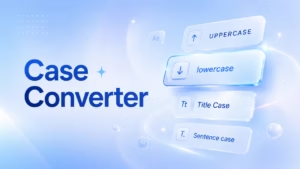
Welcome to the ultimate Case Converter and Formatter. If you are a writer, developer, or student, you know how frustrating it is to manually retype a paragraph just because your caps lock was on. Our advanced Case Converter tool allows you to instantly transform your text into UPPERCASE, lowercase, Title Case, Sentence case, camelCase, and snake_case.
Whether you need to format a stubborn headline for a blog post or convert a variable name for your JavaScript code, this free tool does it all in real-time. What makes this Case Converter unique is its built-in Rich Text Editor, allowing you to apply bold, italics, headings, and lists to your converted text before you copy or download it. No downloads, no signups, and 100% secure.
Real-Life Examples: Where You Need a Case Converter and Formatter
Let’s be honest, we’ve all been there. You write a full blog post or an email, and then you realize the entire heading is in lowercase. Or you copied data from a client, and it’s all in messy UPPERCASE. Fixing it manually is not just boring, it’s a waste of your precious time.
That’s where our case converter and formatter becomes your daily partner. If you are a student, you can quickly format your assignment titles. If you are a blogger, you can make your headlines look professional in one click without retyping. For developers and marketers, this tool saves hours when you are cleaning up bulk data, product titles, or social media captions. It’s not just a converter; it’s your shortcut to looking professional without extra effort. No more holding the Shift key or retyping everything again and again.
Why Use Our Case Converter Tool?
Many basic text tools just do a simple find-and-replace. Our tool is engineered to be a complete text formatting suite. Here is why our Case Converter is the best choice for your daily workflow:
- Live Auto-Conversion: As you type in the input box, watch the rich text editor instantly update with your selected case format. No need to click “Submit” or reload the page.
- Professional Formatting Toolbar: We didn’t just stop at changing letters. You can highlight text in the editor and apply bold, italics, underlines, bulleted lists, and H1/H2/H3 tags for instant visual hierarchy.
- Multiple Case Types: Easily switch between Title Case, Sentence case, UPPERCASE, lowercase, camelCase, and snake_case.
- Export and Copy: Copy the perfectly formatted text directly to your clipboard, ready to paste into Word, Google Docs, or your website, or download it as an HTML file.
- Privacy First: Your text is processed entirely on the client side. We do not store, save, or transmit your data to any servers.
Supported Text Formats (Developer & Writer Friendly)
A true Case Converter needs to handle both writing standards and programming standards. We support six distinct formats:
1. Title Case (Capitalize Each Word)
Perfect for blog headlines and book titles. This format automatically capitalizes the first letter of every major word while keeping minor words (like “and”, “or”, “the”) lowercase.
2. Sentence Case
The standard for standard paragraph writing. It capitalizes the first letter of the first word, and automatically capitalizes the first letter of any sentence that follows a period (.), exclamation mark (!), or question mark (?).
3. UPPERCASE and lowercase
Quickly fix accidental Caps Lock issues or format code strings that require strict casing. You can instantly toggle your entire document to all caps or all lower case.
4. camelCase
Essential for developers. The first letter of the first word is lowercase, and the first letter of every subsequent word is capitalized (e.g., myVariableName). It is widely used in programming languages like JavaScript, Java, and C#.
5. snake_case
Another developer favorite. Spaces are removed and replaced with underscores, and all letters are converted to lowercase (e.g., my_variable_name). Used heavily in Python, SQL, and file naming conventions.

Why Manual Formatting is a Big Mistake (And How We Fix It)
When you try to change text case by yourself in Word or Google Docs, two big problems happen. First, you might miss some words. For example, in Title Case, small words like ‘and’, ‘or’, ‘the’ have different rules, and it’s hard to remember them all. Second, if your text is 1000 words long, your eyes get tired and you make more mistakes.
Many people also accidentally press Caps Lock and write a full paragraph in uppercase, which looks very unprofessional in an email. Our Smart Case Converter is built to handle all these small but important rules. It doesn’t just change letters; it understands the context. It keeps your acronyms safe, it fixes your sentence flow, and it makes sure your final text is 100% clean and ready to publish. You get accuracy that you can never get by doing it by hand, and you get it in less than a second.
How to Convert Text Case in Seconds
Our Case Converter is designed with a clean, user-friendly interface. Here is a simple guide on how to use it:
- Paste Your Text: Type or paste your raw text into the left box labeled “Input Text.”
- Select Your Case: Click on the tab corresponding to the case you want (e.g., Title Case, camelCase).
- Watch it Convert: The right box will automatically convert your text in real-time.
- Format Your Text: Use the rich text toolbar above the right box to bold, italicize, or add headings to your text.
- Copy or Download: Click the “Copy” button or “Download HTML” to save your newly formatted text.
Why is Text Case Formatting Important?
Using the correct casing is crucial in many fields. For web developers, using the correct Case Converter methods like camelCase or snake_case ensures that code runs without syntax errors. For SEO writers, using Title Case helps to draw the reader’s eye to the most important parts of a sentence, improving readability and engagement. For students, using proper sentence case is a core requirement for academic essays.
If you are writing a blog post and need to rework a title, our tool saves you from re-typing the whole sentence. Simply paste, click Title Case, and copy. It is that simple.
Writing vs. Coding: Choosing the Right Case Format
Many users struggle to know exactly which case to apply. If you are drafting an email, Sentence case is almost always the professional standard. However, if you are creating a presentation or a document with subheadings, Title Case makes it easier for the audience to scan. For developers, following the rules of the programming naming convention for your specific language is mandatory. This Case Converter takes the guesswork out of the process by giving you all the options in a single click.
Additionally, relying on software to change case prevents “manual error.” Retyping text to fix casing often introduces new typos, dropped words, or accidental punctuation changes. By allowing the tool to handle the text transformation, you protect the integrity of your original message.
More Free Text & Developer Tools
We are dedicated to making your workflow faster. If you found this Case Converter useful, be sure to explore our other professional utilities on ToolNexus:
- JSON Validator and Formatter: Struggling with a broken API response or a messy configuration file? Clean up and validate your JSON code instantly.
- JavaScript Minifier: Need to speed up your website? Strip out whitespace and comments from your JS files to improve load times.
- CSS Minifier Tool: Optimize your stylesheets with our free online CSS compressor.
- Image Tools: Need to improve your website’s performance? Compress your images online without losing quality, or use our AI Background Remover.
- QR Code Generator: Create custom, branded QR codes for free for your menus, business cards, or WiFi passwords.
More Than Just a Converter – A Complete Writing Assistant
What makes ToolNexus different from other 100 case converter websites? It’s the simplicity and speed. We didn’t add 100 annoying pop-up ads. We didn’t ask for your email. We just made a tool that works instantly. You paste your text, you click, you copy. That’s it.
Plus, it’s completely free and works on all devices. Whether you are on your mobile phone in Lahore or on a laptop in your office, the tool will work perfectly. Your data is also 100% safe because we never save what you type. Once you close the page, your text is gone. This is why thousands of writers and students trust ToolNexus every day for their quick text fixing needs. Try it once, and you will never go back to the manual way again.
Frequently Asked Questions (FAQ)
Is my data safe with this Case Converter?
Yes, absolutely. This tool operates entirely in your browser using JavaScript. We do not have a database that saves your text, and no data is sent over the internet. Your privacy is 100% guaranteed.
Can I use this tool to change text to camelCase?
Yes! Our Case Converter supports developer-friendly formats like camelCase and snake_case. This makes it perfect for developers who need to quickly format variable names without doing it manually.
Does the tool preserve formatting when I copy it?
Yes. Our rich text editor is designed to preserve formatting. When you click the “Copy” button, it copies the text including bolding, italics, headings, and lists. You can paste this directly into platforms like Google Docs, Microsoft Word, or an email client.
What is the difference between Title Case and Sentence case?
Title Case capitalizes the first letter of every major word in a phrase (e.g., “The Quick Brown Fox”). Sentence case only capitalizes the first letter of the sentence and proper nouns (e.g., “The quick brown fox”). The letter case standards are different depending on what you are writing.
Can I convert a full document or a single sentence?
You can convert as much text as you need. The tool supports up to 10,000 characters, making it perfect for converting paragraphs, short essays, or even chunks of code.
Why did my text lose its formatting when I pasted it from Word?
Microsoft Word often uses proprietary background code. Our tool strips out this messy code to ensure your final text is clean and ready for the web. You can easily re-apply bold, italics, and headings using the rich text toolbar above the output box.
What is the difference between snake_case and kebab-case?
Snake case uses underscores to separate words (e.g., my_variable_name), while kebab case uses hyphens (e.g., my-variable-name). Kebab case is common in CSS and URL slugs, while snake case is heavily used in Python and database schemas. Our Case Converter currently focuses on snake case, as it is the most requested developer format.