
By ToolNexus Team
Upload a photograph at the wrong shape and Instagram crops it for you, usually through somebody’s head. Learning how to resize an image for instagram before uploading takes the decision back. It takes about a minute once you know which numbers to aim at.
Quick Answer at a Glance
| Placement | Ratio | Pixels |
|---|---|---|
| Square post | 1:1 | 1080 x 1080 |
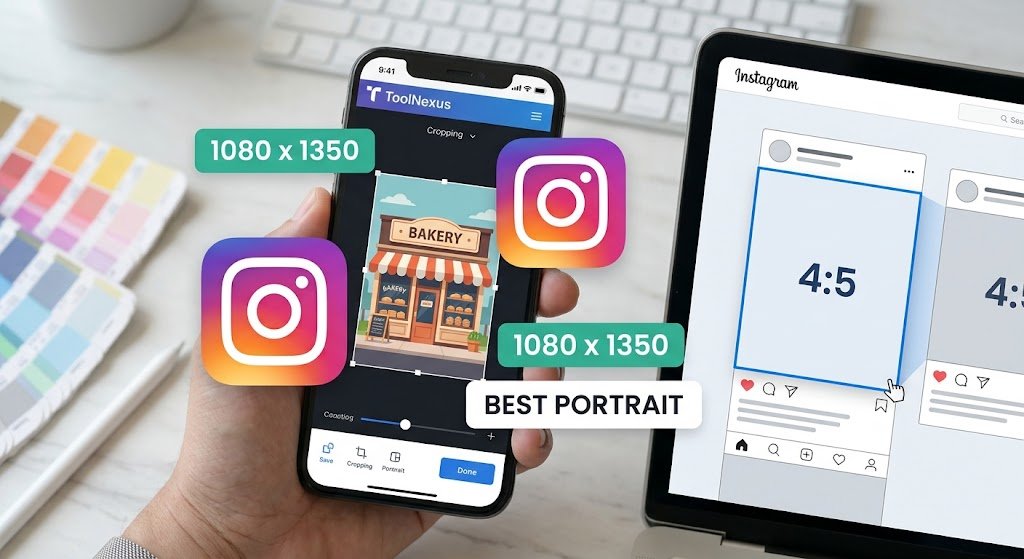
| Portrait post | 4:5 | 1080 x 1350 |
| Landscape post | 1.91:1 | 1080 x 566 |
| Story | 9:16 | 1080 x 1920 |
| Reel | 9:16 | 1080 x 1920 |
| Reel cover | 9:16 | 1080 x 1920 |
| Profile picture | 1:1 | 320 x 320 displayed as a circle |
The width is 1080 pixels in almost every case. Only the height changes, which makes the whole thing simpler than the tables usually suggest.
Why Portrait Beats Square
A 4:5 portrait occupies more vertical space in a feed than a square does. More space means more time on screen as somebody scrolls. That is the whole argument.It is not a dramatic difference and it costs nothing to take. If you are choosing a crop with no strong reason either way, choose portrait. Landscape is the weakest of the three in a feed, since it takes the least vertical room. It earns its place only when the composition genuinely needs the width.
What Happens if You Do Not Resize
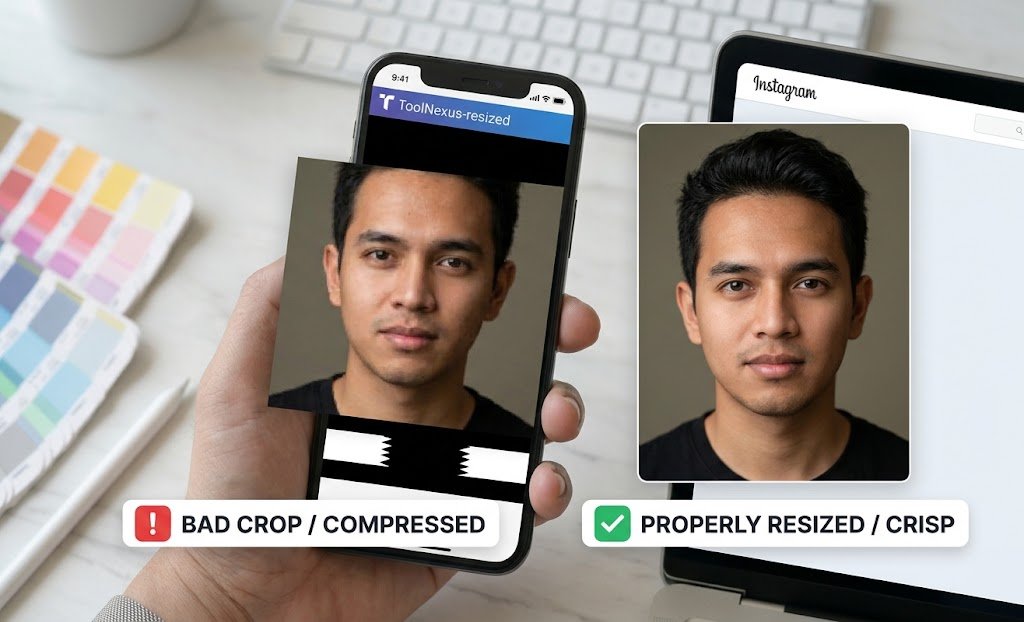
Two things. Neither is under your control once the file is uploaded.The app crops to fit a supported ratio, taking the center and discarding the rest. It also recompresses the file. That happens more aggressively on an oversized image than on one already at 1080 pixels wide. So an unresized upload gets cropped badly and compressed harder than it needed to be.
Uploading at 1080 pixels wide removes the second problem entirely. Cropping it yourself removes the first.
Resizing Before You Upload
- Open your image in an editor and crop to the ratio you want, using the numbers in the table above.
- Set the width to 1080 pixels and let the height follow the ratio.
- Export as JPG at a high quality setting, then upload that file.
The ToolNexus tool that lets you edit photo online handles the crop and resize in a browser with no account. If the export lands larger than you want, the tool that will compress jpeg files brings it down before upload.
Do Not Go Above 1080 Pixels
This catches out people who assume bigger is better.Instagram displays at 1080 pixels wide. Upload a 4000 pixel image and the platform resizes it down on its own servers, applying its own compression in the process, which is generally harsher than what you would have applied yourself. Uploading at the target size means the platform has less work to do and your file survives closer to how you exported it.The exception is a very small image. Anything under 320 pixels wide gets enlarged. Enlargement always looks worse than reduction.
The Profile Picture Trap
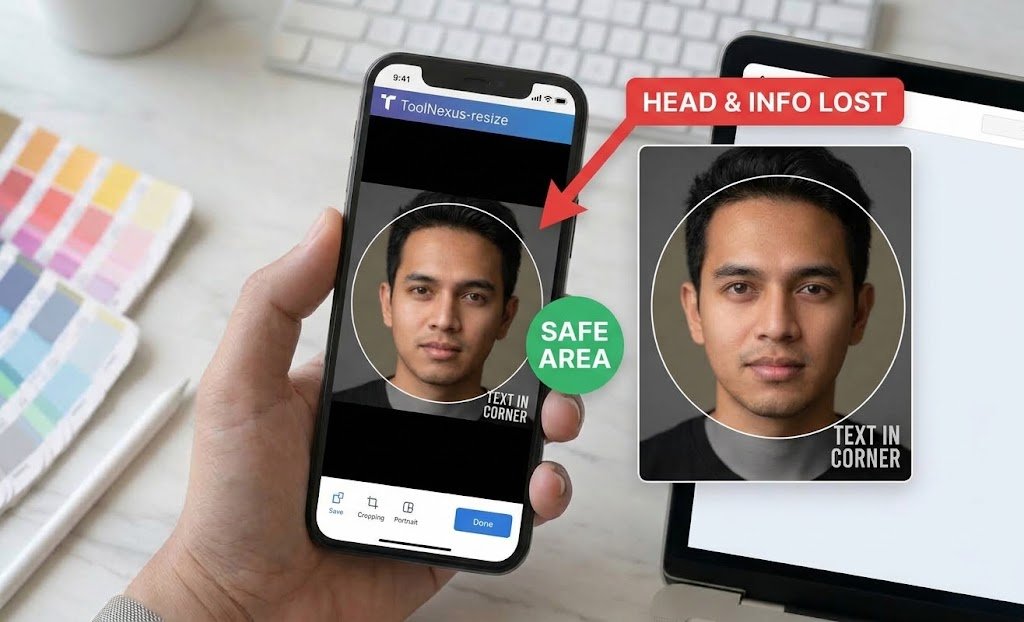
Profile pictures display as a circle while you upload a square. Every corner of that square is cut off.Anything important, a face, a logo, text, needs to sit well inside the middle. A logo that fills its square edge to edge loses its corners and often becomes unreadable. Leave a generous margin and check the result on a phone rather than on a desktop, since the displayed size is far smaller than the file you uploaded.
Text on Images
Small text is the most common casualty of platform compressionKeep any text large and high contrast. Keep it away from the edges where a future ratio change might crop it. If the text is essential to the meaning of the post, put it in the caption as well. Captions are searchable, readable by screen readers and immune to compression, none of which applies to words baked into a picture.
A Real Case
A bakery posted product photographs straight from a phone at 4032 pixels wide, uncropped. Instagram cropped each one to a square and cut the top off several cakes. Switching to a 1080 by 1350 portrait crop done before upload fixed the framing and made the photographs noticeably crisper, because the platform no longer had to resize and recompress them.
Related Reading
Resizing for a website rather than a feed follows different rules. Those are in how to optimize images for seo. For choosing an export format, best image format for web covers the options.
About the Author
The ToolNexus Team builds free browser based file tools. The site started with a small group of developers who thought professional grade utilities should not carry a professional grade price tag. It now runs ten tools covering images, PDFs, video and code.
FAQs About how to resize an image for instagram
What is the best pixel size for an Instagram post?
1080 pixels wide, with the height set by the ratio you choose. That means 1080 by 1080 for a square and 1080 by 1350 for a portrait. Instagram displays at that width. Uploading larger only hands the platform a resizing job it will do with its own compression rather than yours.
Is 1920×1080 good for Instagram?
For a feed post it is the wrong shape. That is a 16:9 landscape ratio and the feed favors taller crops. It takes the least vertical space of any option. Rotated to 1080 by 1920 it is exactly right for a story or a reel, which is the placement those dimensions actually suit.
Is Instagram 16:9 or 4:3?
Neither, for a standard post. The supported feed ratios are 1:1 square, 4:5 portrait and 1.91:1 landscape. Stories and reels use 9:16. A 4:3 or 16:9 image will be cropped to fit whichever supported ratio is closest. That crop is decided by the app rather than by you.
Is Instagram 1920×1080?
Only when rotated. Stories and reels are 1080 by 1920, which is the same numbers the other way round. Uploading a landscape 1920 by 1080 file to a story leaves large empty bands above and below. Uploading it to a feed post produces the shortest possible display height in the scroll.
Crop It Yourself
1080 pixels wide, portrait when in doubt, cropped before you upload rather than after. That covers every placement and takes about a minute per image. Resize free on ToolNexus with no account and nothing to install.
Comments (0)
0 totalNo comments yet. Be the first to share your thoughts!